Introducing the New Flow Builder: Parallel Processing, Redesigned Canvas, and More
16 MAR 2026
At Diaflow, we believe building AI workflows should feel intuitive — not like wrestling with a tangled flowchart. Today, we're excited to introduce the new Flow Builder, a ground-up redesign of our workflow canvas that changes how you build, visualize, and run automations.
The headline feature? Parallel processing. But there's a lot more to unpack.
From Linear to Parallel: Why It Matters
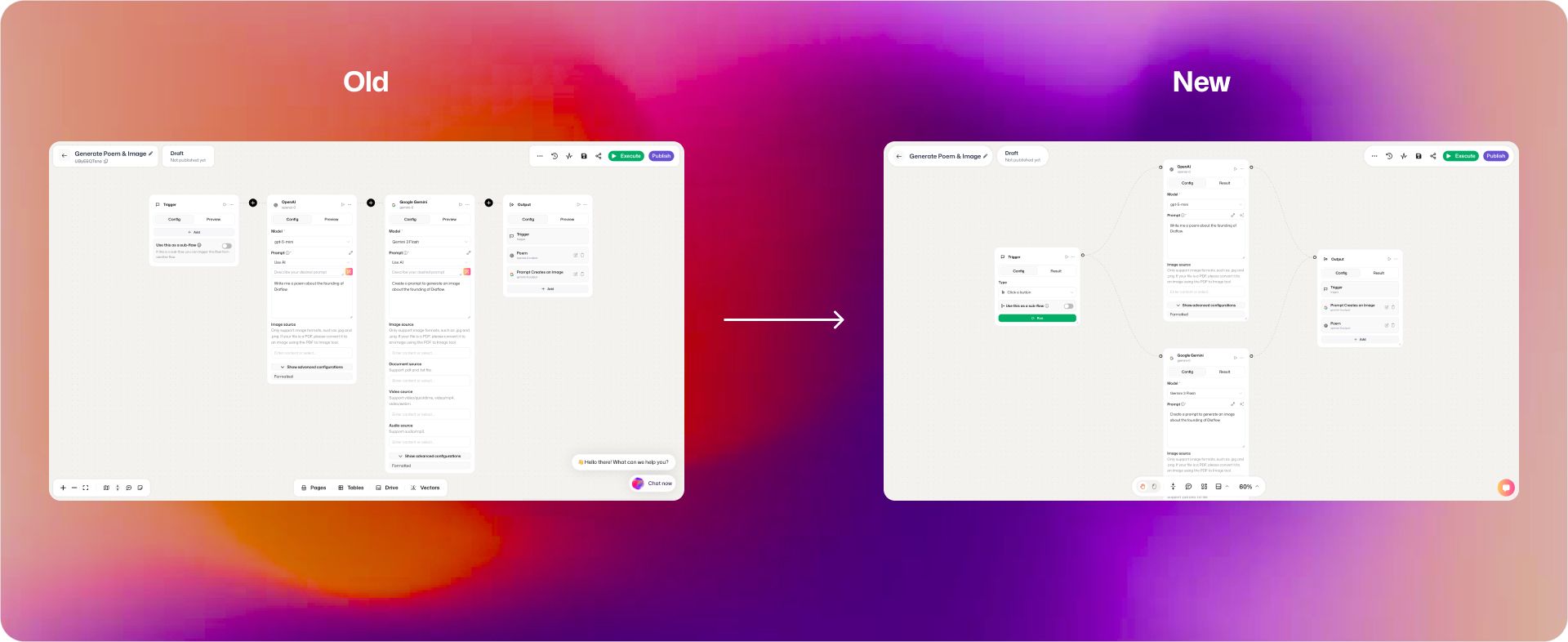
The previous Flow Builder followed a linear execution model. Each step ran one after the other, left to right, in a strict sequence: Trigger → Step 1 → Step 2 → Step 3 → Output. If you had three independent AI calls — say, generating a summary, extracting keywords, and analyzing sentiment — they would execute one at a time, even though none of them depended on each other.
That's slow. And it doesn't reflect how real work happens.
The new Flow Builder introduces parallel processing with a vertical, branching canvas layout. When your workflow reaches a point where multiple steps can run independently, they now execute simultaneously. The Trigger fans out into parallel branches, each running its own sequence of steps, and the results converge downstream.
What this means in practice
Faster execution. If your workflow includes three independent AI model calls, the old linear approach runs them one after another — tripling the total wait time. With parallel processing, they all fire at once, and your workflow only waits as long as the slowest branch. For complex workflows with many independent operations, the speed improvement is dramatic.
Better resource utilization. Instead of idling while one step completes, the system keeps all available resources active. This is especially impactful for workflows that call external APIs or LLMs, where most of the wait time is network latency.
Clearer logic. The vertical branching layout makes it visually obvious which steps depend on each other and which can run independently. When you look at the canvas, you immediately understand the execution flow — no need to trace through a long horizontal chain wondering which steps actually need to be sequential.
Closer to how agents think. In multi-agent architectures, agents often work on different sub-tasks at the same time. Parallel processing aligns your workflow design with how agentic systems naturally operate — multiple specialized agents working concurrently, then synthesizing their outputs.
When to use parallel vs. sequential
Not every workflow needs parallel processing. If Step B depends on the output of Step A, they should remain sequential. The new Flow Builder supports both patterns — and lets you mix them freely. Use parallel branches for independent operations (multiple LLM calls, API requests, data lookups) and sequential chains where outputs feed into the next step.
A Canvas That Feels Like a Design Tool
Beyond execution logic, we've completely redesigned the canvas experience. If you've used tools like Figma, you'll feel right at home.
Mouse mode
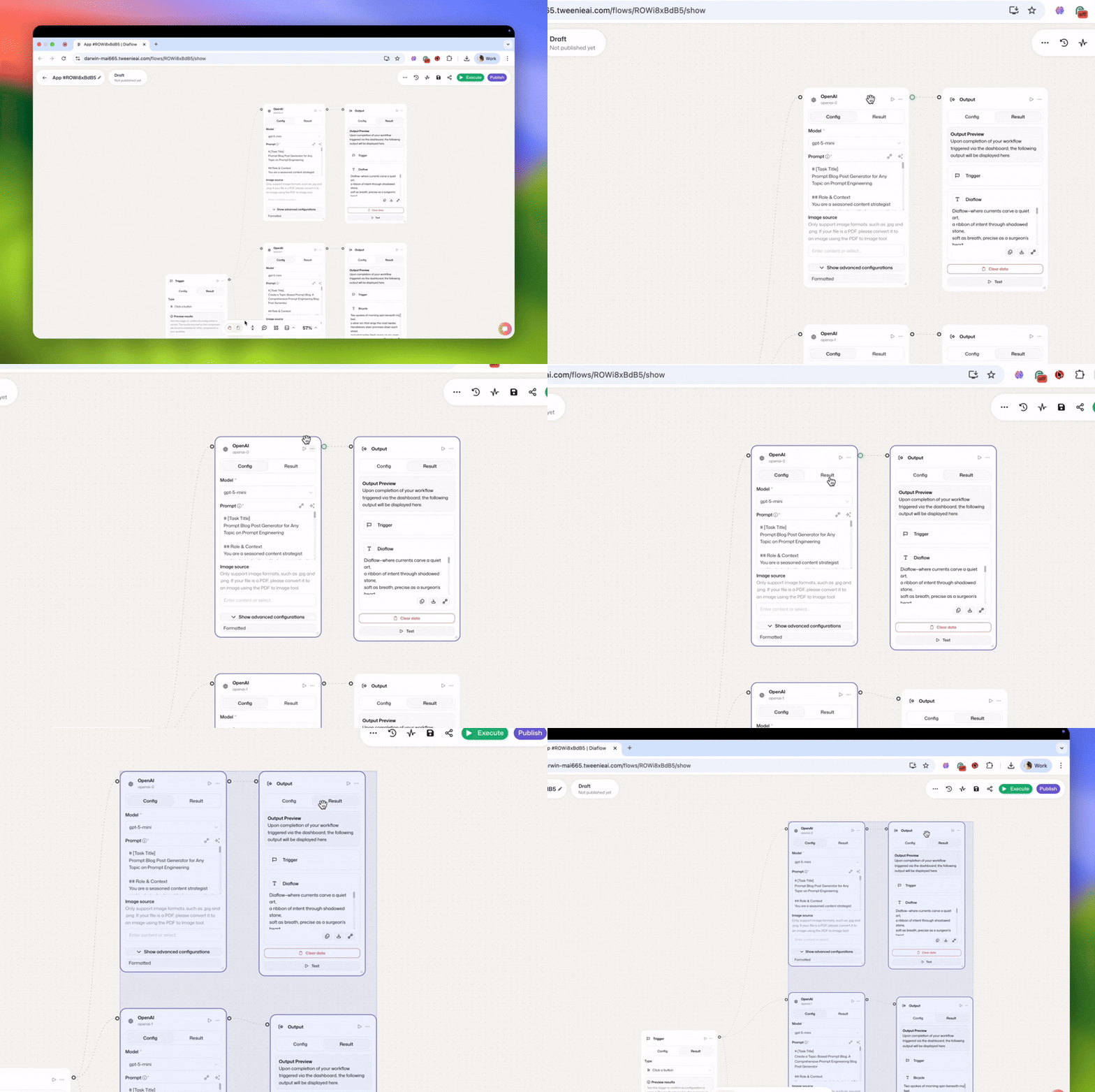
The new canvas supports a full mouse interaction mode inspired by modern design tools. Pan, zoom, select, and drag nodes with the same gestures you use in Figma. No more awkward click-and-hold to move around the canvas — it just works the way you expect.
One-click layout cleanup
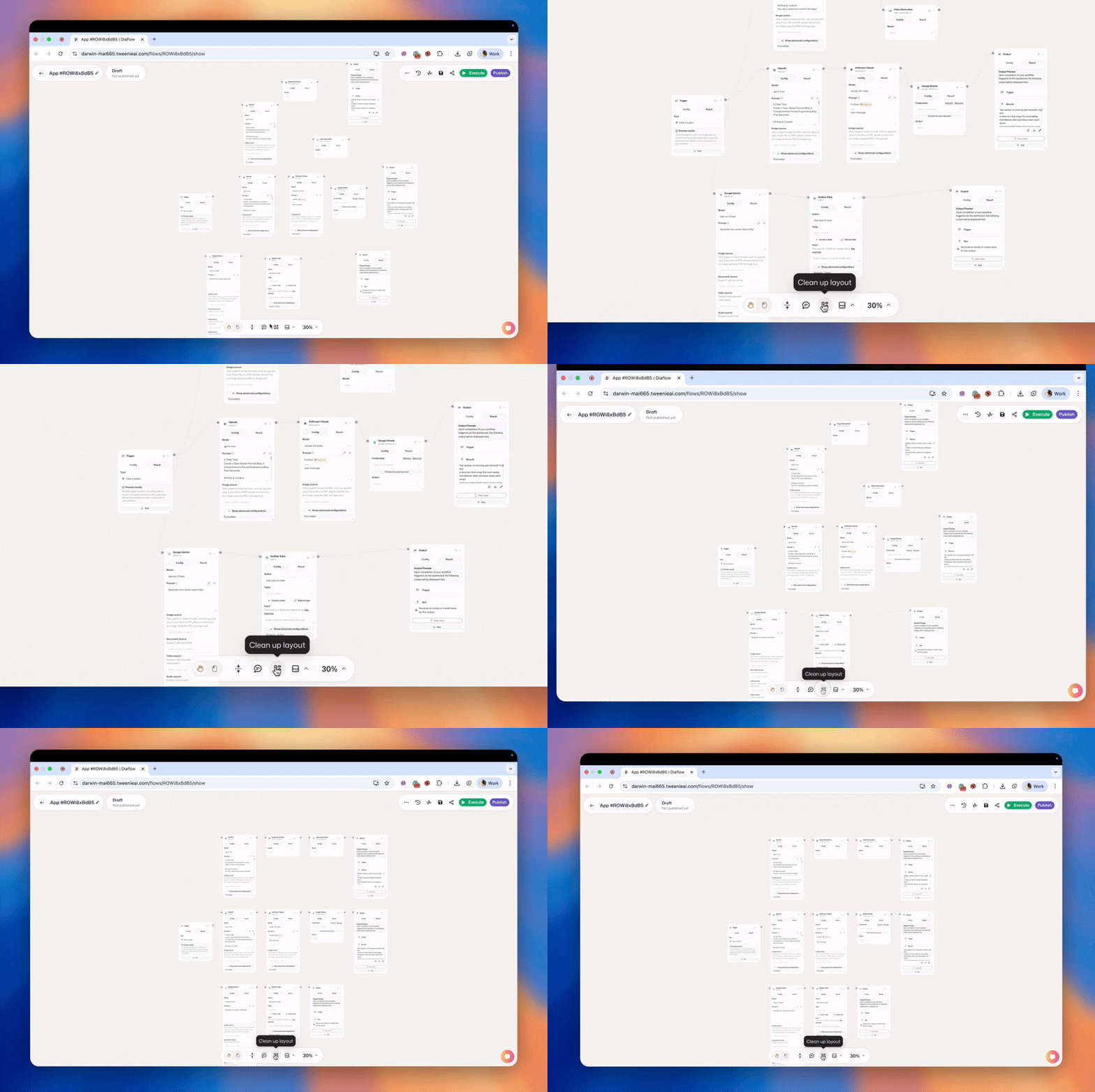
We've all been there: after a few rounds of editing, your canvas looks like a plate of spaghetti. The new auto-tidy feature cleans up your entire layout with a single click. Nodes snap into a clean, readable arrangement — branches aligned, spacing consistent, connections untangled. It's the "Format Document" shortcut for visual workflows.
Rounded corners and a friendlier aesthetic
The visual design has been refreshed with softer, rounded corners and a cleaner card-based look. It's a subtle change, but it makes a real difference when you're staring at a canvas for extended sessions. The interface feels warmer, less clinical, and more approachable — especially for non-technical users building their first workflows.
Building Workflows at the Speed of Thought
Speed matters when you're in flow state. The new canvas introduces two interaction patterns that eliminate friction when adding nodes to your workflow.
Drag-and-connect from any node
Grab the connection handle on any node and drag outward. As you pull, a connector line follows your cursor. Release, and the component library appears instantly at that exact position. Select your next step — an LLM call, a conditional branch, a data transformer — and it snaps into place, pre-connected. No manual wiring. No hunting for components then dragging them across the canvas. The workflow builds itself as you think through the logic.
This interaction pattern mirrors how you actually design workflows: "After this API call, I need to transform the data, then..." Your hand follows your thought process, and the canvas keeps up.
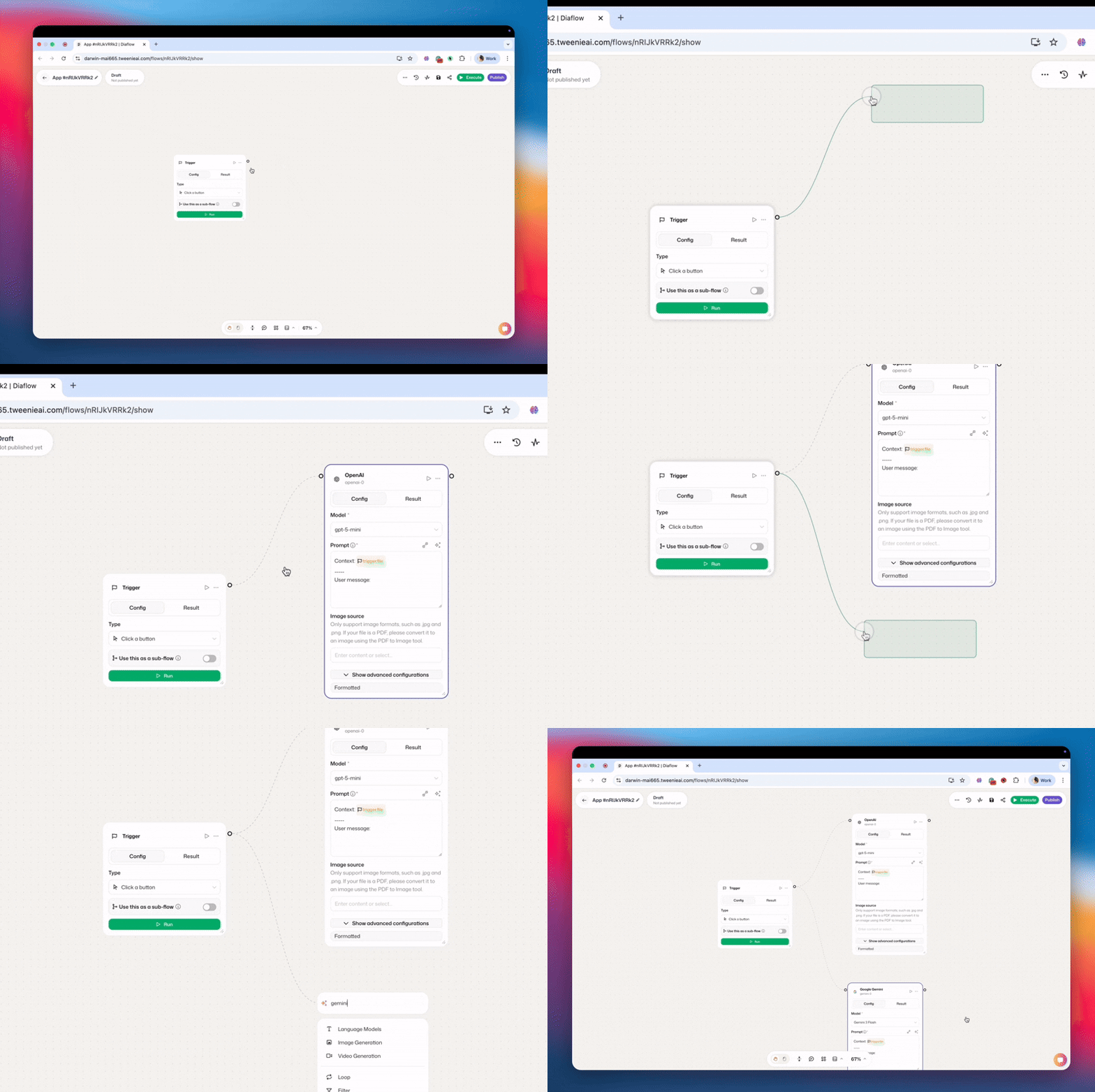
Right-click component library
Right-click anywhere on the canvas to summon the full component library. It appears as a contextual menu at your cursor position — no need to reach for the dock at the bottom of the screen. Select a component, and it drops exactly where you clicked. From there, connect it to your workflow with a single drag.
This is fastest when you're adding a new branch or inserting a step between existing nodes. Right-click, select, connect. Three actions, zero interface hunting.
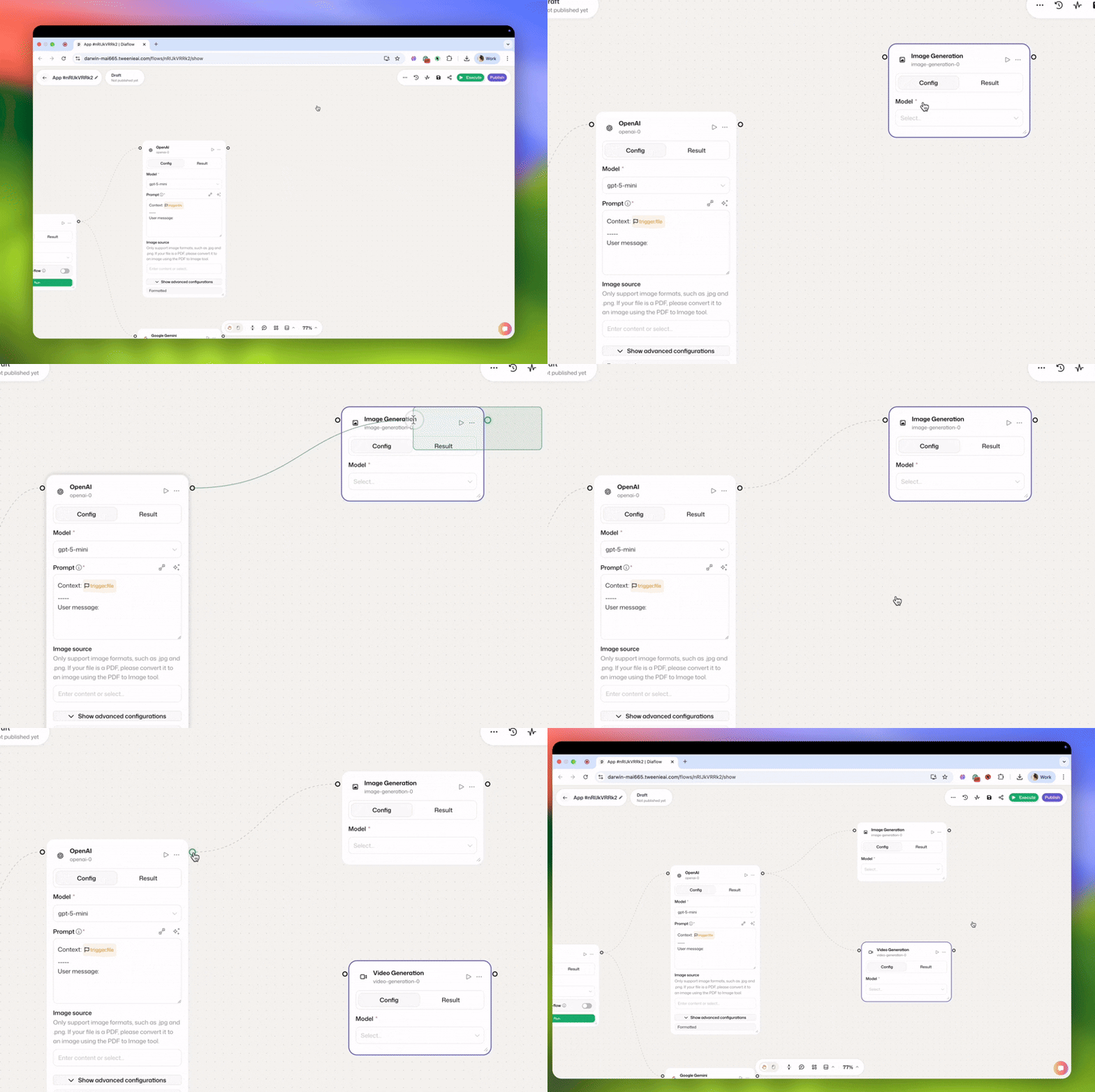
Loop node is now grouped for better control
The Loop node has been redesigned to be much more intuitive. Looped steps are now visually grouped together, making it easier to manage complex iterations and understand the flow at a glance.
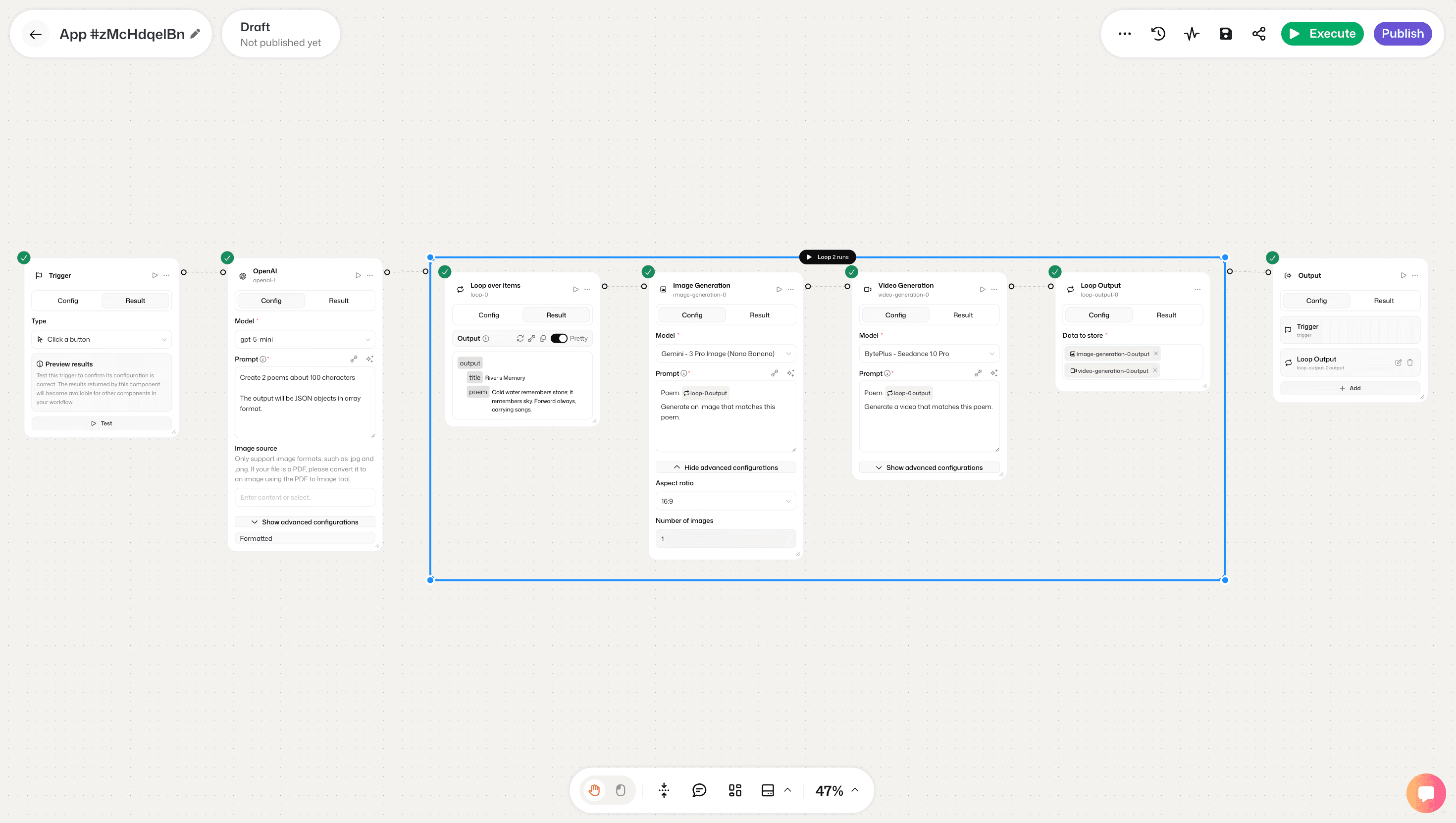
Branch node is replaced — branching is now visual
The Branch node has been replaced with a more intuitive approach. Instead of inserting a Branch node, you simply drag from any node to create a new branch. Use the Filter node for conditional routing — it's cleaner, more readable, and fits naturally into the canvas layout.
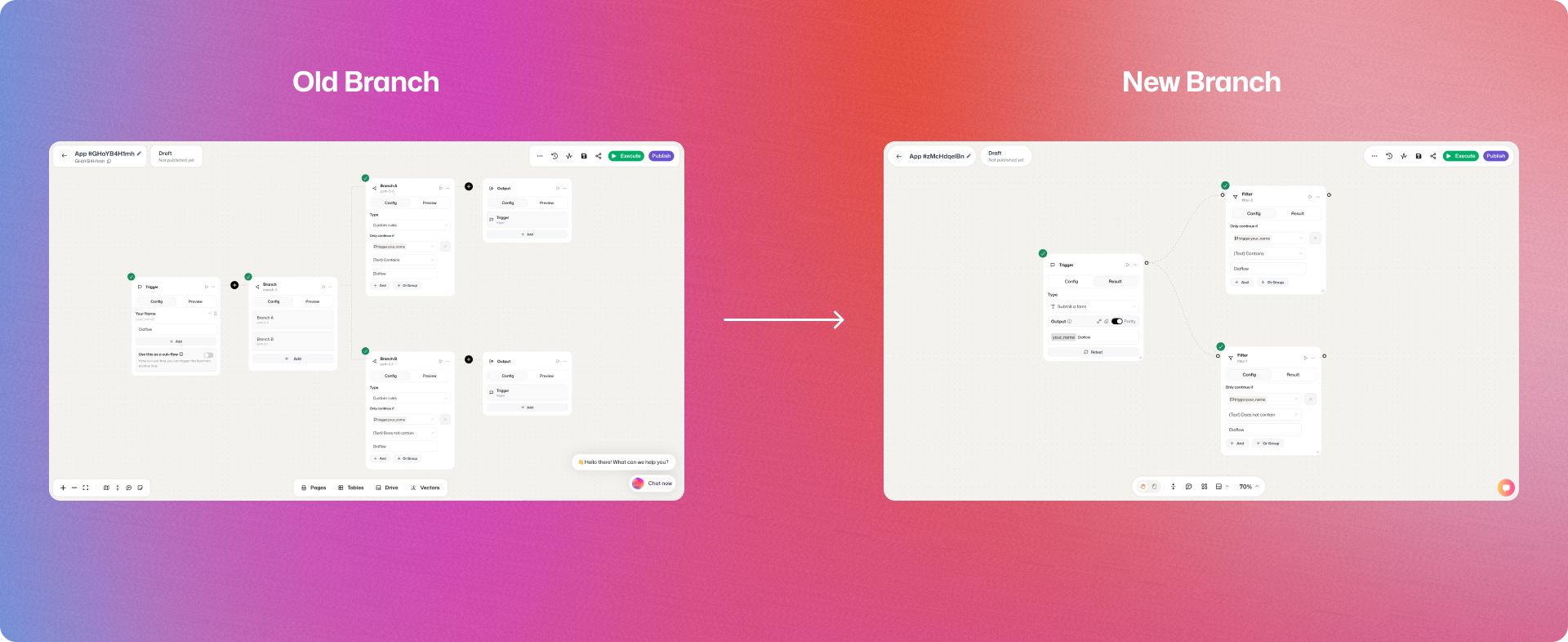
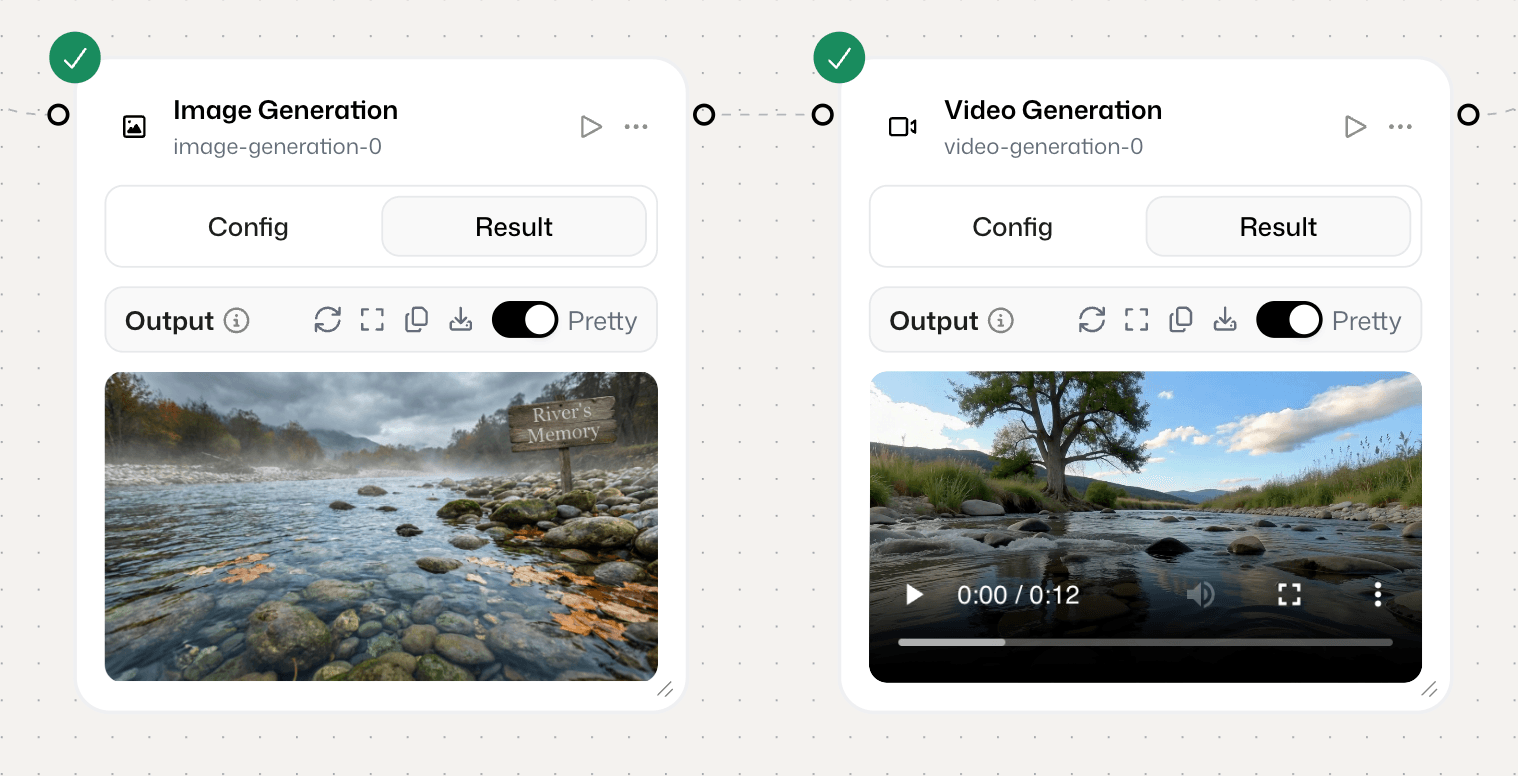
View generated images and videos directly in the node
You no longer need to go to the output node to see results. Images and videos generated by AI nodes are now previewed inline, directly within the node itself — making the builder experience significantly faster and more fluid.
Better management with new listing page
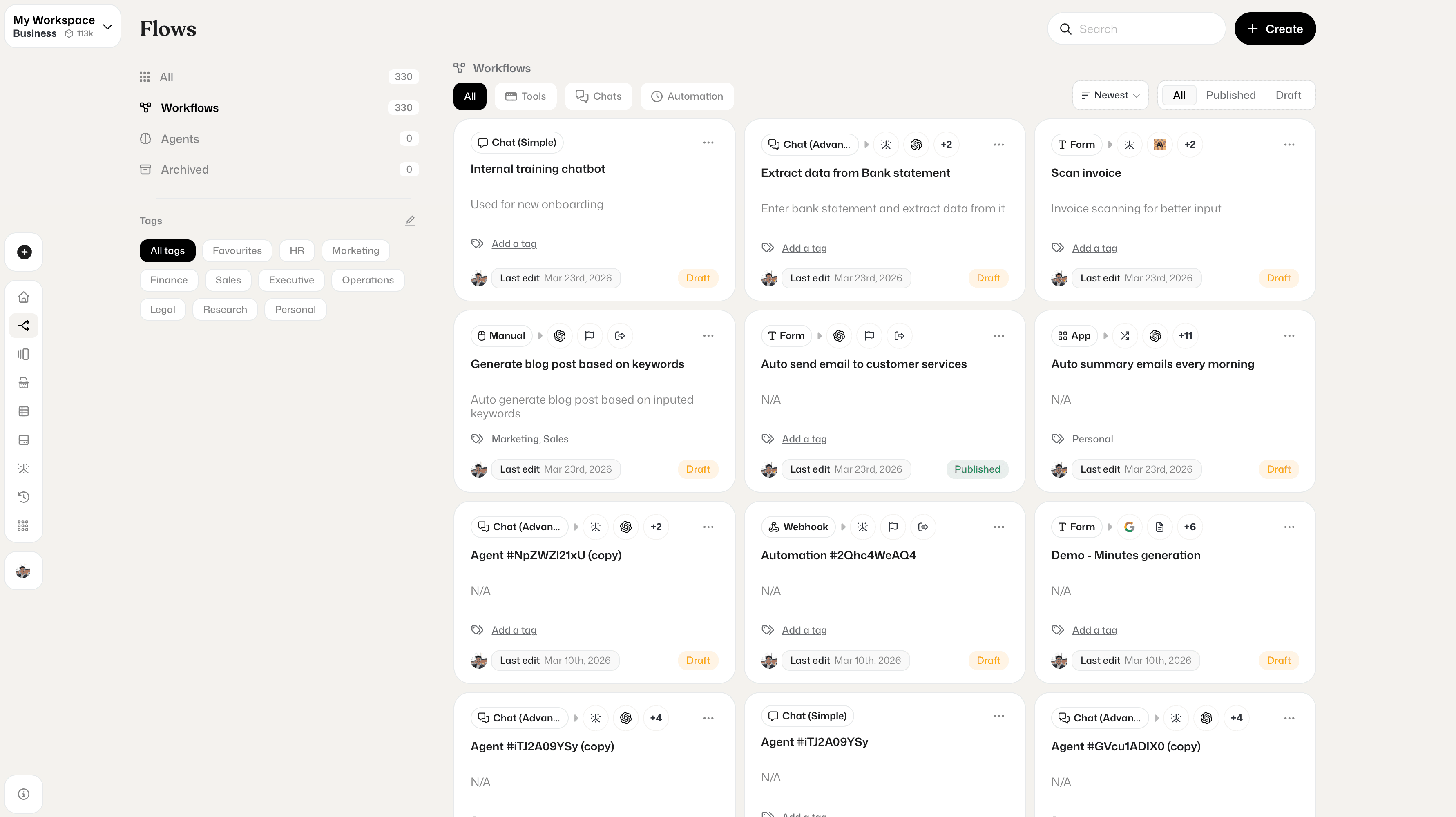
Keeping hundreds of flows organized just got a lot easier. You can now tag flows by category, team, or use case — think HR, Marketing, Finance, Operations — and filter your workspace instantly. Folders let you group related flows together for cleaner navigation, while the Archive feature lets you tuck away inactive flows without deleting them, keeping your workspace clutter-free. Whether you're managing 10 flows or 330, everything stays exactly where you expect it.
Backward compatibility — your legacy flows are safe
Legacy flows are not affected. Old flows will be automatically converted to the new version. You won't lose any of your automations or interrupt any running workflows during the transition.
Why this matters
These interaction patterns reduce the cognitive load of workflow building. Instead of thinking about the tool, you think about the logic. The canvas becomes transparent — an extension of your problem-solving process rather than an obstacle to it. For teams building complex, multi-step automations, this translates to faster iteration cycles and fewer interruptions to flow state.
Try It Now
The new Flow Builder is live for all Diaflow users. Open any existing workflow and you'll see the updated canvas immediately. Your existing flows are fully compatible — no migration needed.
We built these changes based on direct feedback from our community of 10,000+ users. If you have thoughts, feature requests, or just want to share what you're building, reach out to us — we're listening.
Build faster. Run in parallel. Stay in flow.